The Refer a Friend program surfaces in multiple places within digital banking to maximize visibility. Members can share their referral code with friends, and referred individuals can submit the code when they first log in — all without leaving the app.
Program Surfaces
The referral experience can appear in the following locations depending on how your institution configures the program.Sidebar Widget
The referral widget sits in the right panel of the application dashboard, giving members direct access to the program at a glance. It shows the referral offer, a call-to-action to share, and a running count of successful referrals.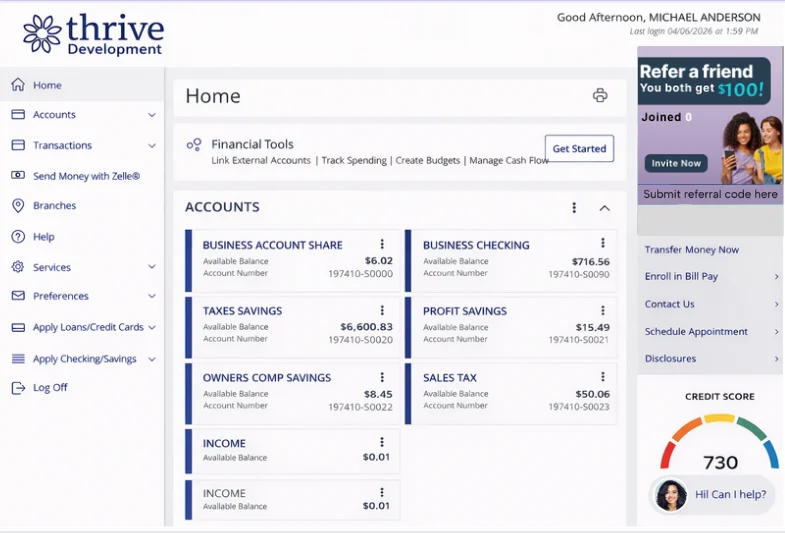
Full-Width Landing Page
The referral experience can also be presented as a dedicated full-width page within digital banking. Members who have already submitted a referral code can check their reward eligibility status from this view via the Check Eligibility Status action.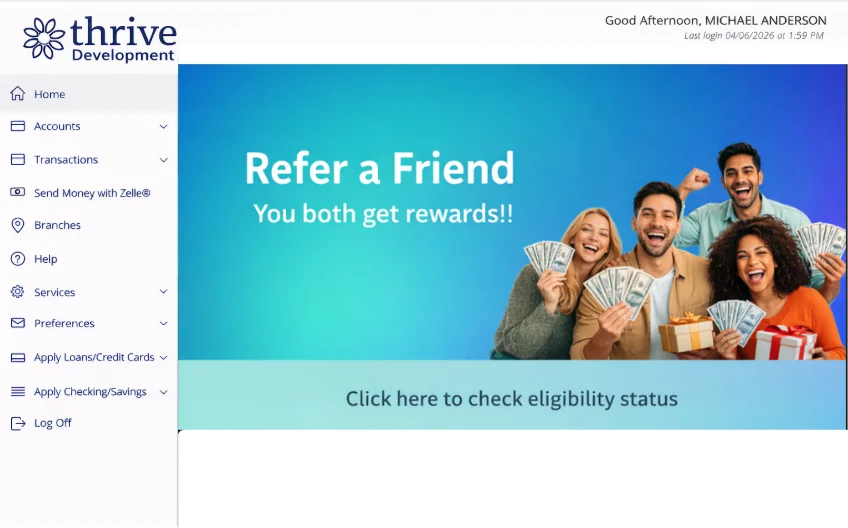
Composable Dashboard Card
The referral program can appear as a card within the composable dashboard alongside other features. The card provides a quick entry point and includes a call-to-action to share a referral or check eligibility status.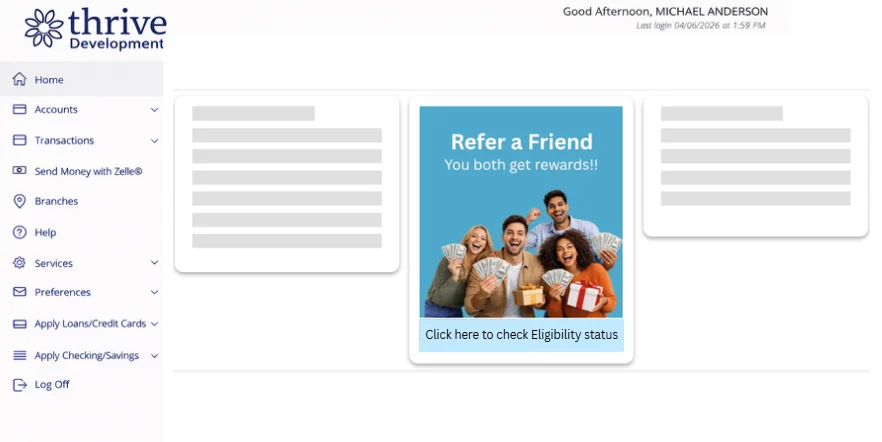
Smart Ads
The referral experience can also be promoted through Smart Ads — contextual banners, pop-ups, or inline cards that appear within digital banking to guide members into the program.
Sharing a Referral
When a member taps or clicks the referral widget, the sharing experience adapts to their device.Mobile
On mobile, the device’s native share sheet opens with a pre-filled message containing the referral code, the institution’s name, and a sign-up link. The member can share directly to any app or contact.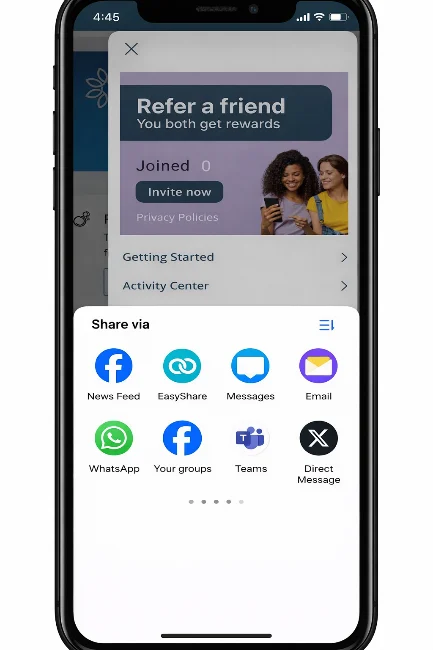
Desktop
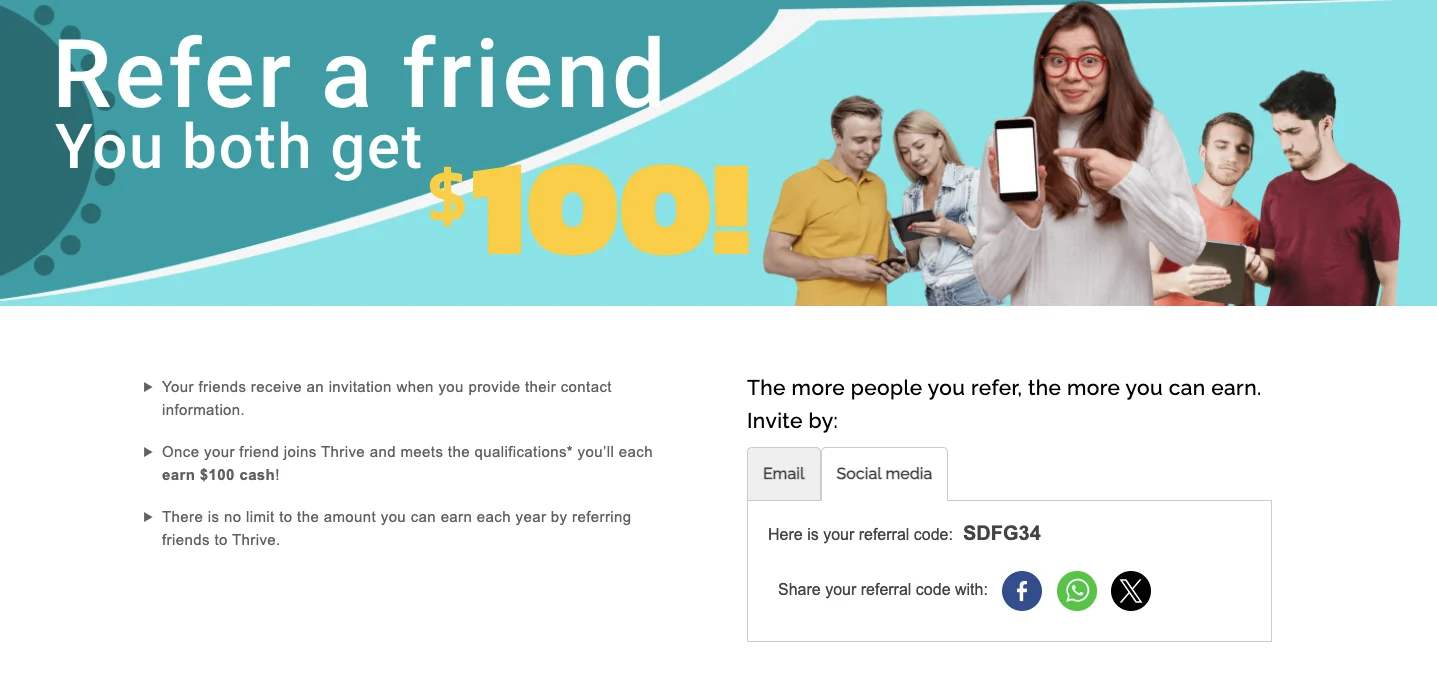
On desktop, a referral form opens in a panel within digital banking. The member can send the referral via email or other available channels from within the panel.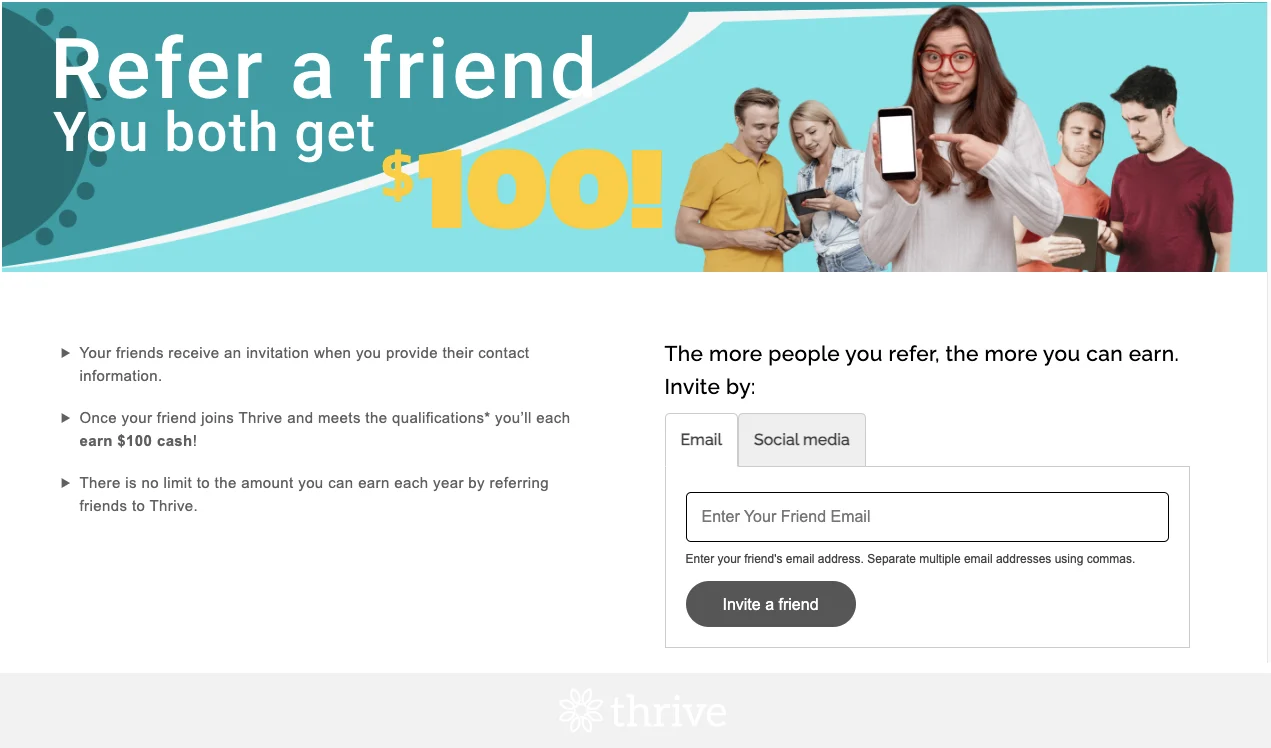
Submitting a Referral Code
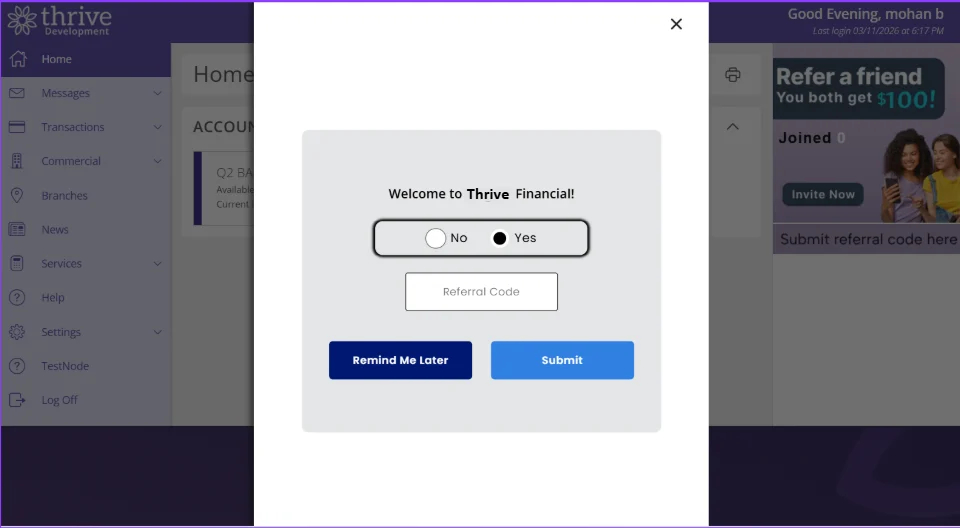
When a referred individual logs into digital banking for the first time, the system checks whether a referral code prompt should be shown based on the following conditions:- An active campaign is currently running
- The new member’s account was opened within the campaign’s date range
- The member has not already submitted a referral code for this campaign
- The submission window (configured in days) has not yet expired
- Selecting Yes reveals a text field to enter the referral code
- Selecting No dismisses the prompt permanently — the member will not be prompted again
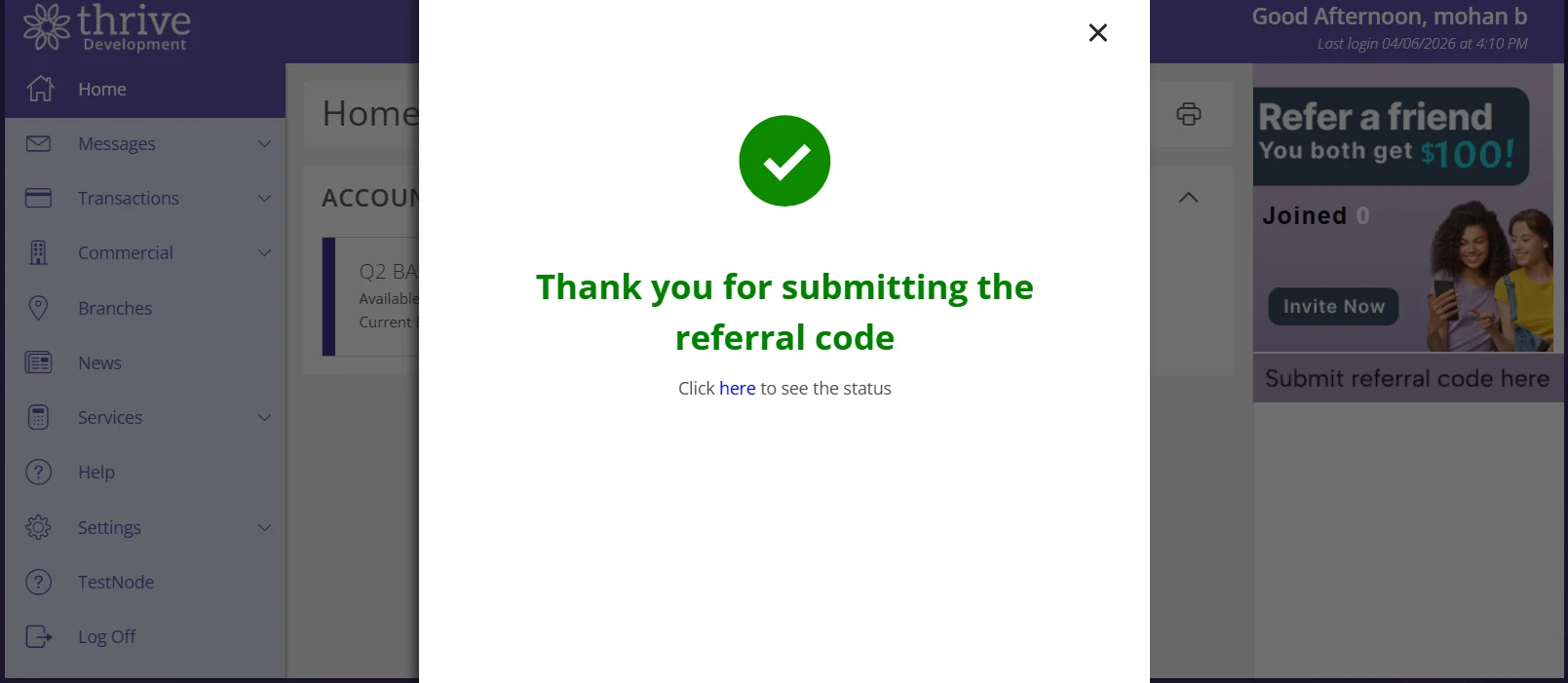
- Selecting Remind Me Later hides the prompt for the current session and shows a button to reopen it
Checking Eligibility Status
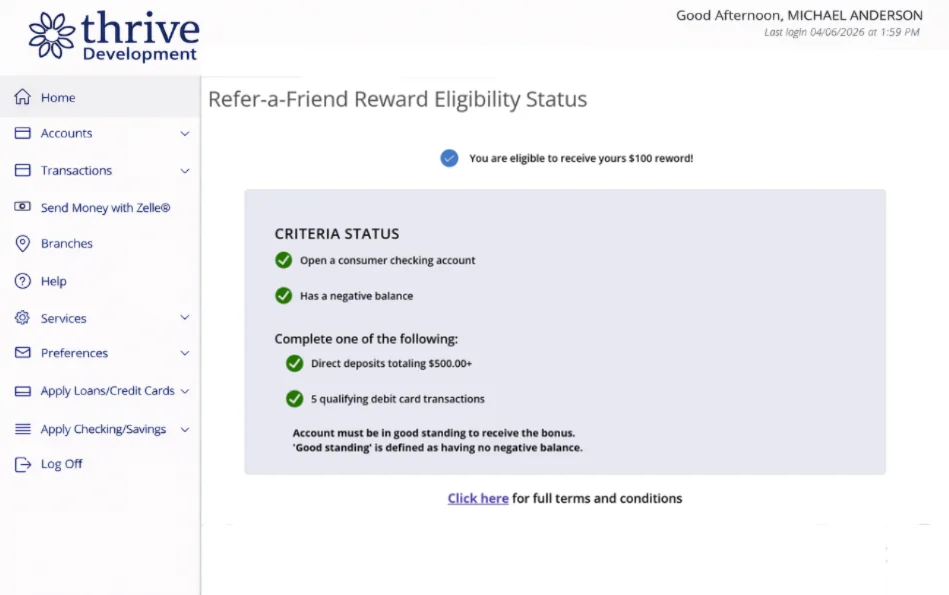
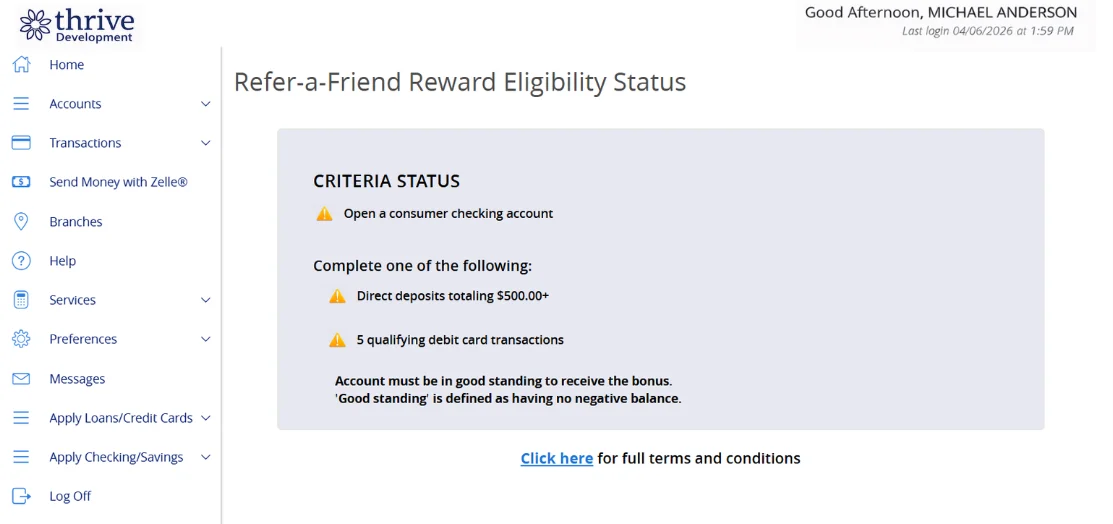
After submitting a referral code, the new member can track their progress toward the reward on a dedicated eligibility status page. This page is accessible via the Check Eligibility Status button that appears on the referral widget following a successful submission.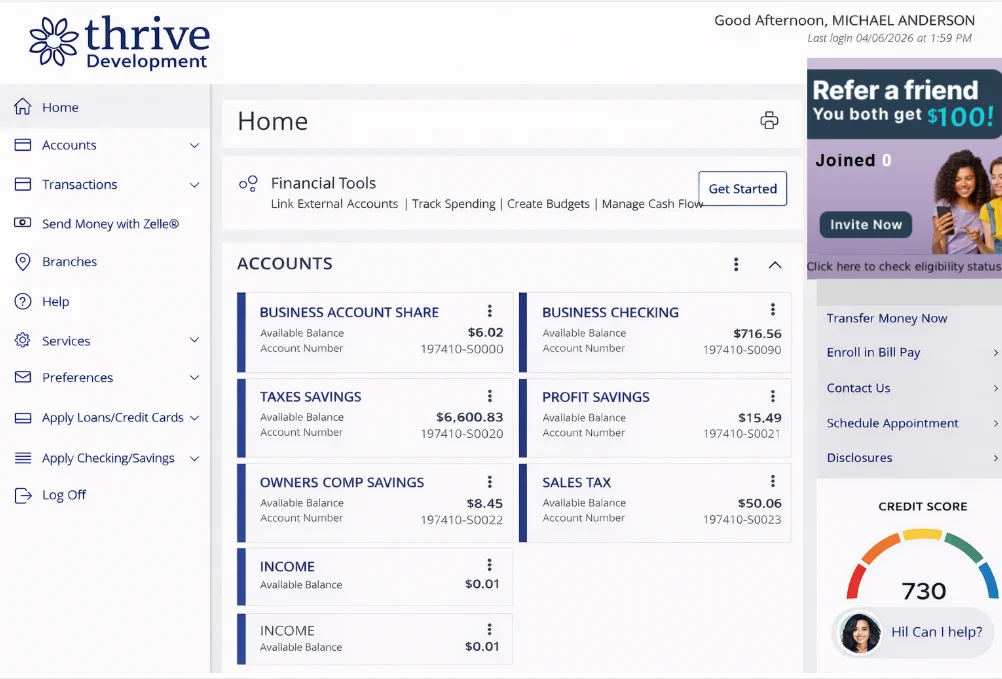
- Each eligibility criterion and whether it has been completed
- The number of days remaining to meet all criteria
- The reward amount the member will receive upon completion